
Appearance
Signing Up
POS Hub sign-up is self-service. In a few minutes you create your login, verify your email address and set up your first business: a merchant account for a restaurant or food business, or a partner workspace for a POS, ordering or delivery platform.
Start at the POS Hub sign-up page. To try POS Hub without affecting live data, sign up in the Test environment instead.
The progress bar at the top of the page shows where you are:
- Choose your path
- Your account
- Verify email, shown only until your email address is verified
- Set up business
You can go back to an earlier step at any time without losing what you have entered.
1. Choose your path
Select the option that best describes you, then select Continue as merchant or Continue as partner.
- Merchant: you run a restaurant or food business and want to manage orders, sync menus and connect your POS.
- Partner: your company builds integrations, such as a POS platform, an order channel or a last-mile delivery service.
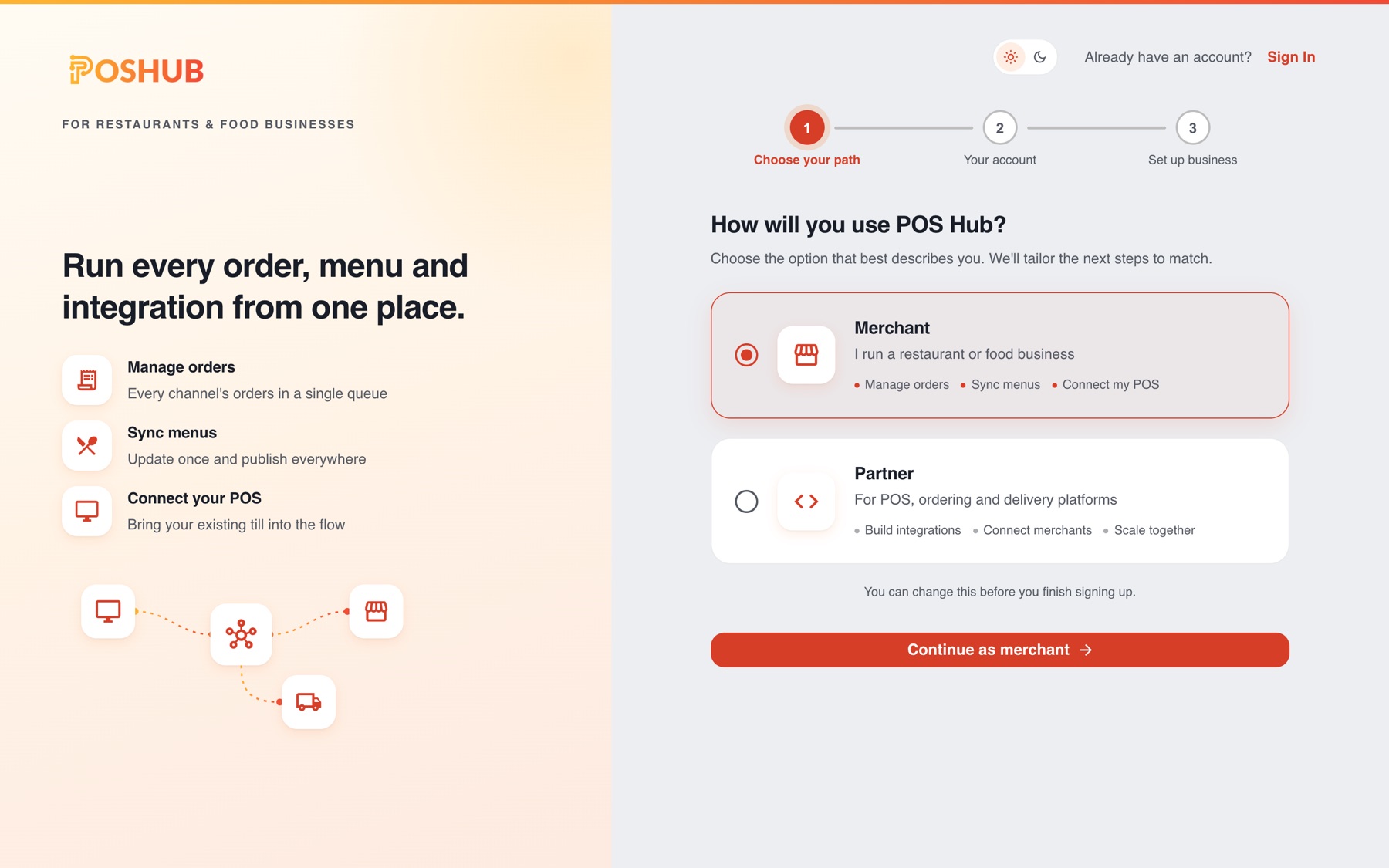
The rest of the journey adapts to your choice. You can change it until you finish signing up.
2. Create your login
The quickest way is Continue with Google: choose your Google account, and POS Hub creates your login from it. You don't need a password or mobile number, and because Google has already verified your email address, you skip Verify email and go straight to Set up business. If a POS Hub login already uses that email address, you're asked to sign in with its password and confirm before Google is connected; see Sign In.
Or enter your details:
- First name and Last name
- Email address: you sign in with it, and we send your verification link to it.
- Mobile number: used to verify it's you, and to sign in with a mobile OTP.
- Language: used for emails and the dashboard.
- Password: at least 8 characters, including a letter and a number. The checks below the field turn green as you type.
Select Create account.
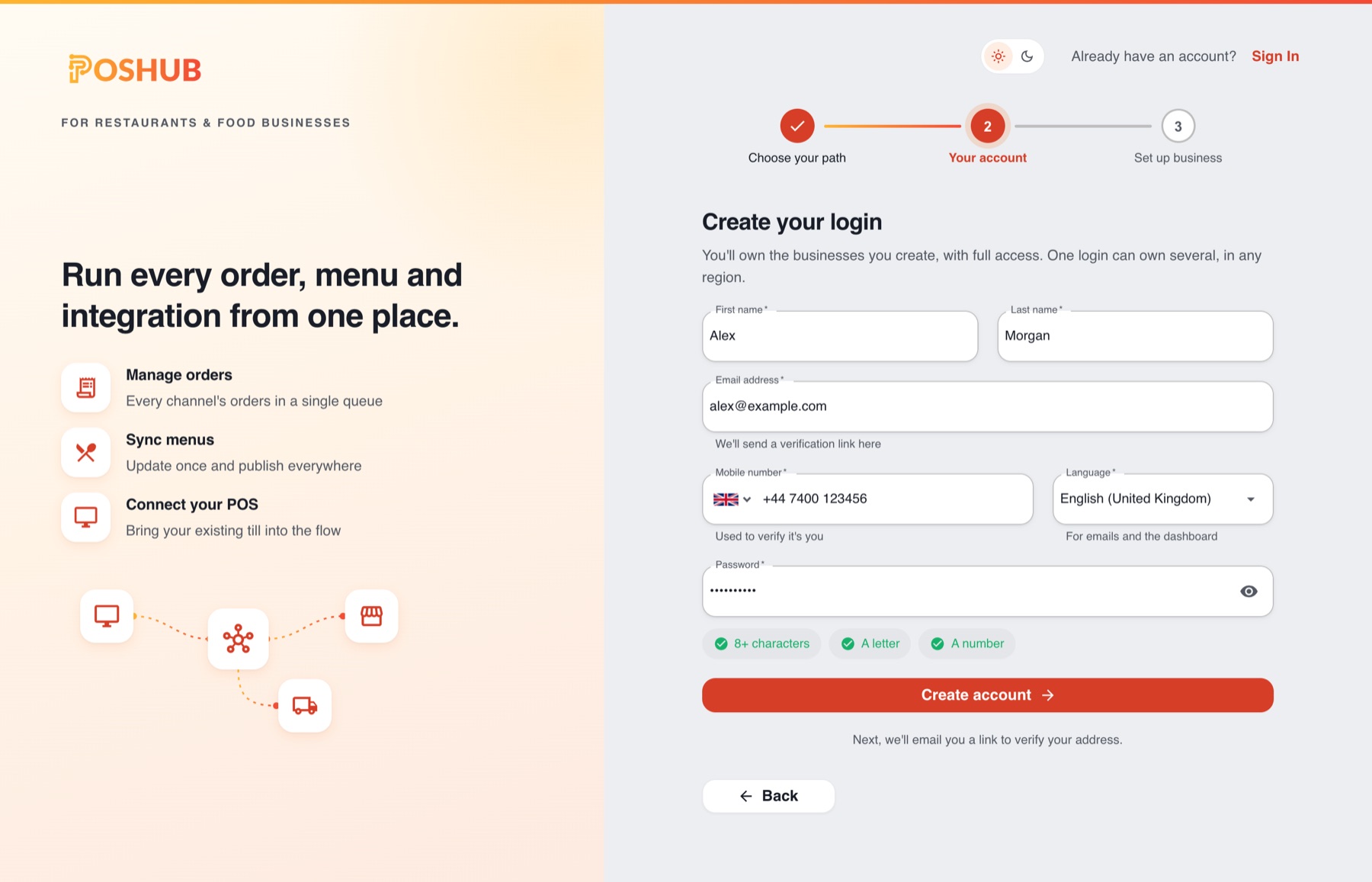
You own every business you create with this login, with full access. One login can own several businesses, in any region.
TIP
Already have a POS Hub login? Select Sign In at the top of the page instead. See Sign In.
3. Verify your email
We email you a verification link. Open it, and the sign-up page moves on by itself once your email address is verified. If you verified it in another tab, select I've verified my email.
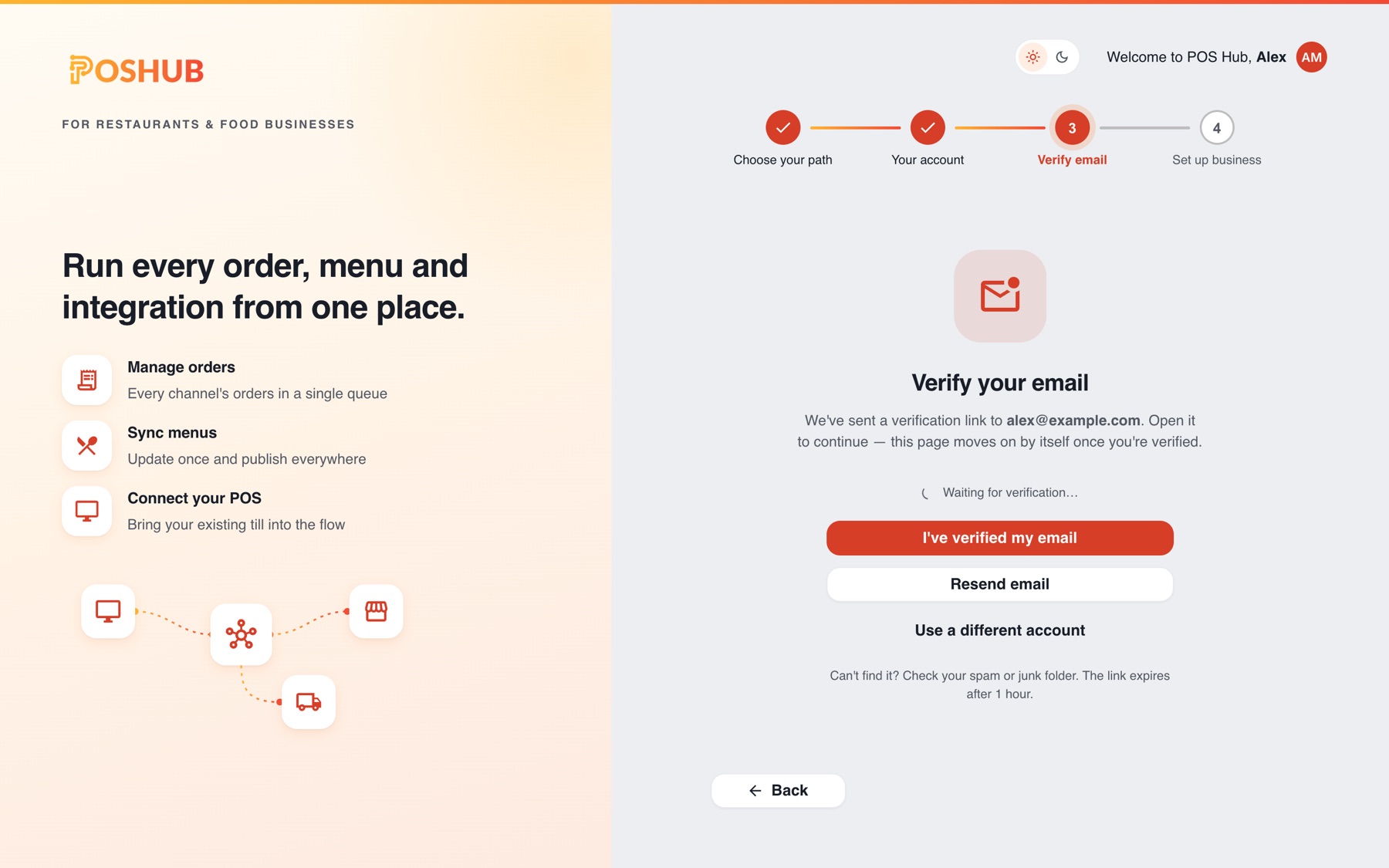
- Resend email sends a new link. You can resend once a minute.
- Use a different account signs you out so you can start again with another email address.
Can't find the email? Check your spam or junk folder. The link expires after 1 hour.
INFO
Your business can only be created once your email address is verified.
4. Set up your business
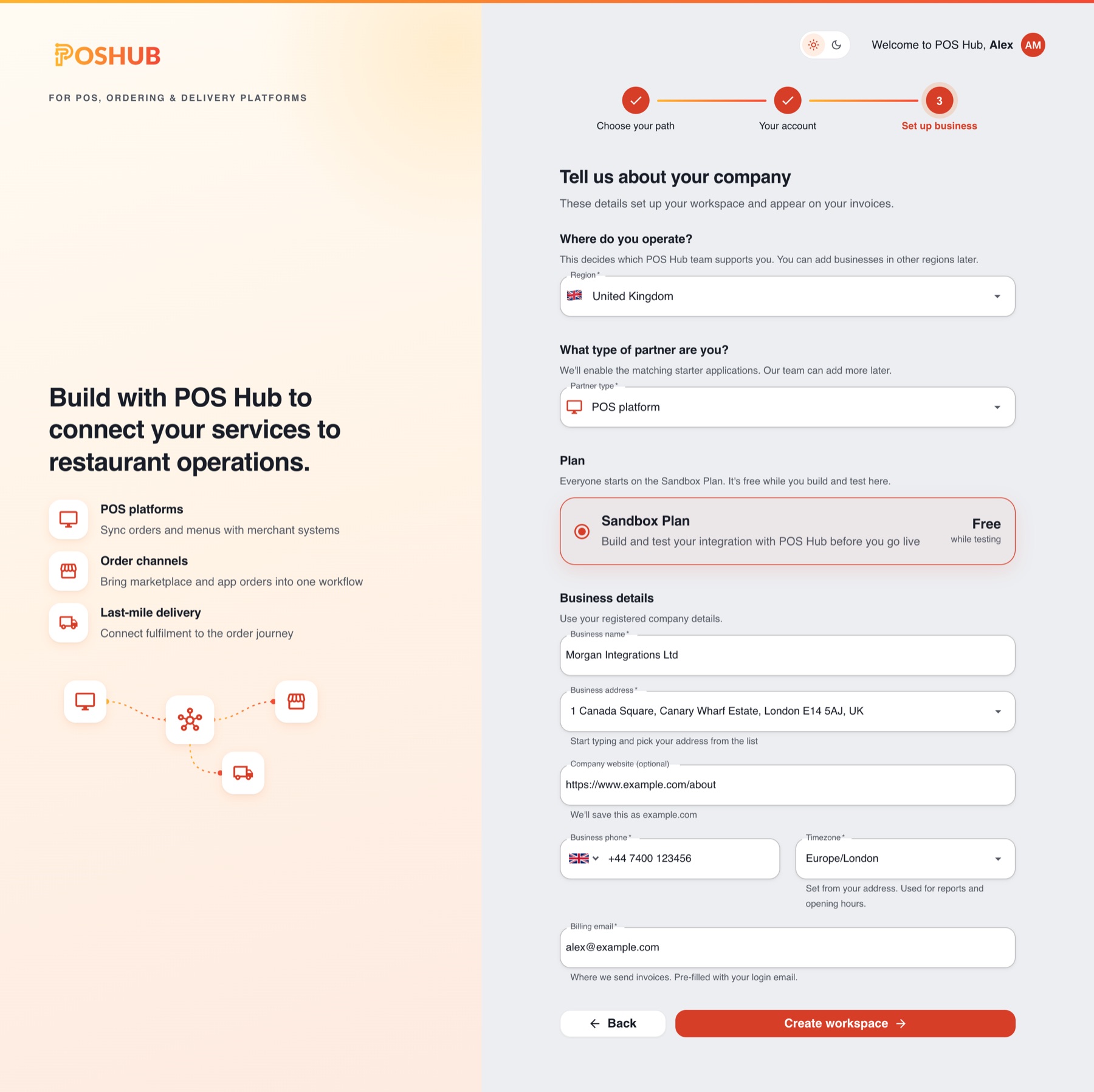
Fill in the sections in order. Each one unlocks when the one before it is complete, and the cursor moves to the next field for you.
Where do you operate?
Choose your Region: United Kingdom, Ireland, United States, Canada, Australia or New Zealand. Your region decides which POS Hub team supports you and the currency you are billed in. You can add businesses in other regions later.
What type of partner are you? (partners only)
Choose the Partner type that matches your product: POS platform, Order channel, Last-mile delivery or Other. We enable the matching starter applications, and our team can add more later.
Plan
Every new business starts on the Sandbox Plan, which is selected for you. The plan card shows its price; in the Test environment it is free.
Business details
- Business name: merchants use their trading name; partners use their registered company name.
- Business address: start typing and pick your address from the list. Your timezone is set from it.
- Company website (partners only, optional): paste your website address. Only the domain is kept, for example
example.com. - Business phone: filled in with your mobile number; change it if your business has its own number.
- Timezone: used for reports and opening hours.
- Billing email: where invoices are sent. It is filled in with your login email, and you can change it.
Select Create merchant account (merchants) or Create workspace (partners).
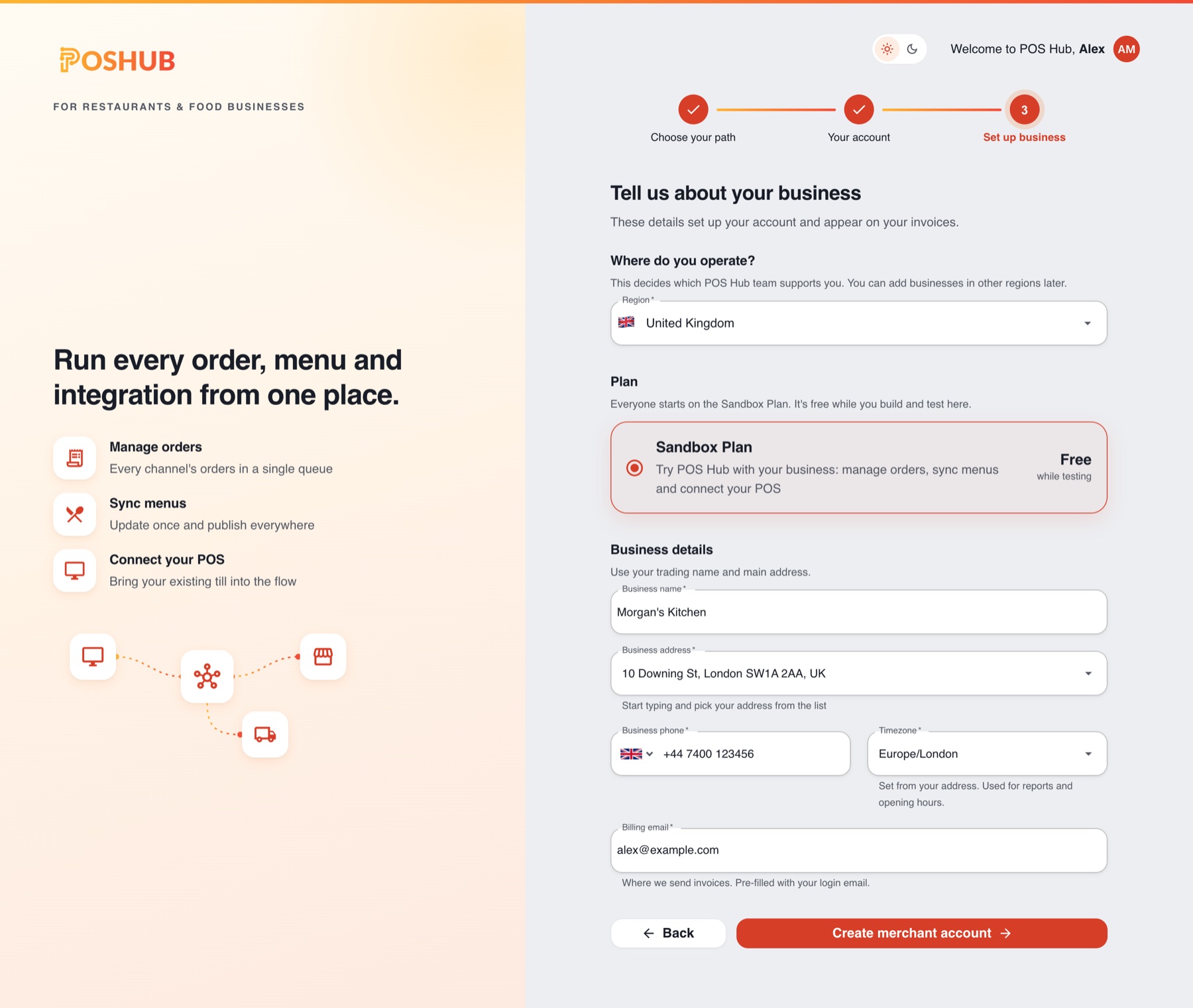
POS Hub opens your new business. Merchants can continue with Create Location; partners can continue with Create an Application.
Signing out during sign-up
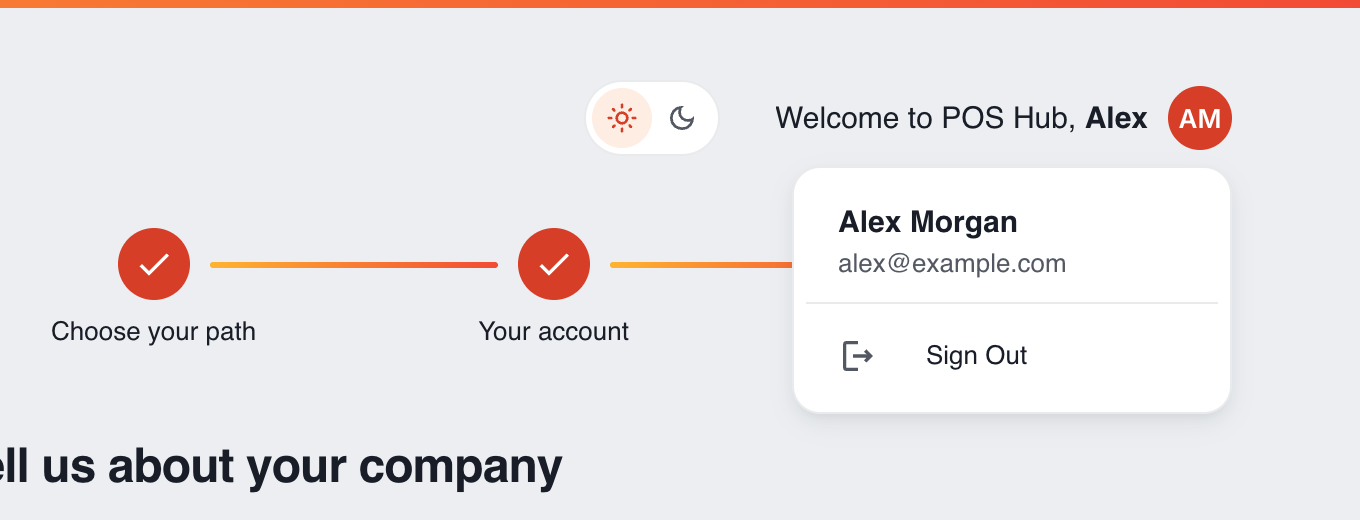
Once your login exists, the page header greets you by name. Select your initials to see your name and email address, and select Sign Out to leave. When you sign in again, POS Hub takes you back to where you left off.
Adding another business
You can own several merchant accounts and partner workspaces with one login. In the dashboard, open the account menu (your initials, top right) and select Create account or reseller. Choose Merchant or Partner, and you go straight to Set up business.
The new business is added alongside the ones you already have; nothing about your existing businesses changes. If you change your mind, select Go to dashboard at the top of the page.